Worker guide
Employees, apprentices and subcontractor workers
TradieDash shows you the jobs and tasks you've been given: where to go, what to do, and what to record. It works best on your phone.
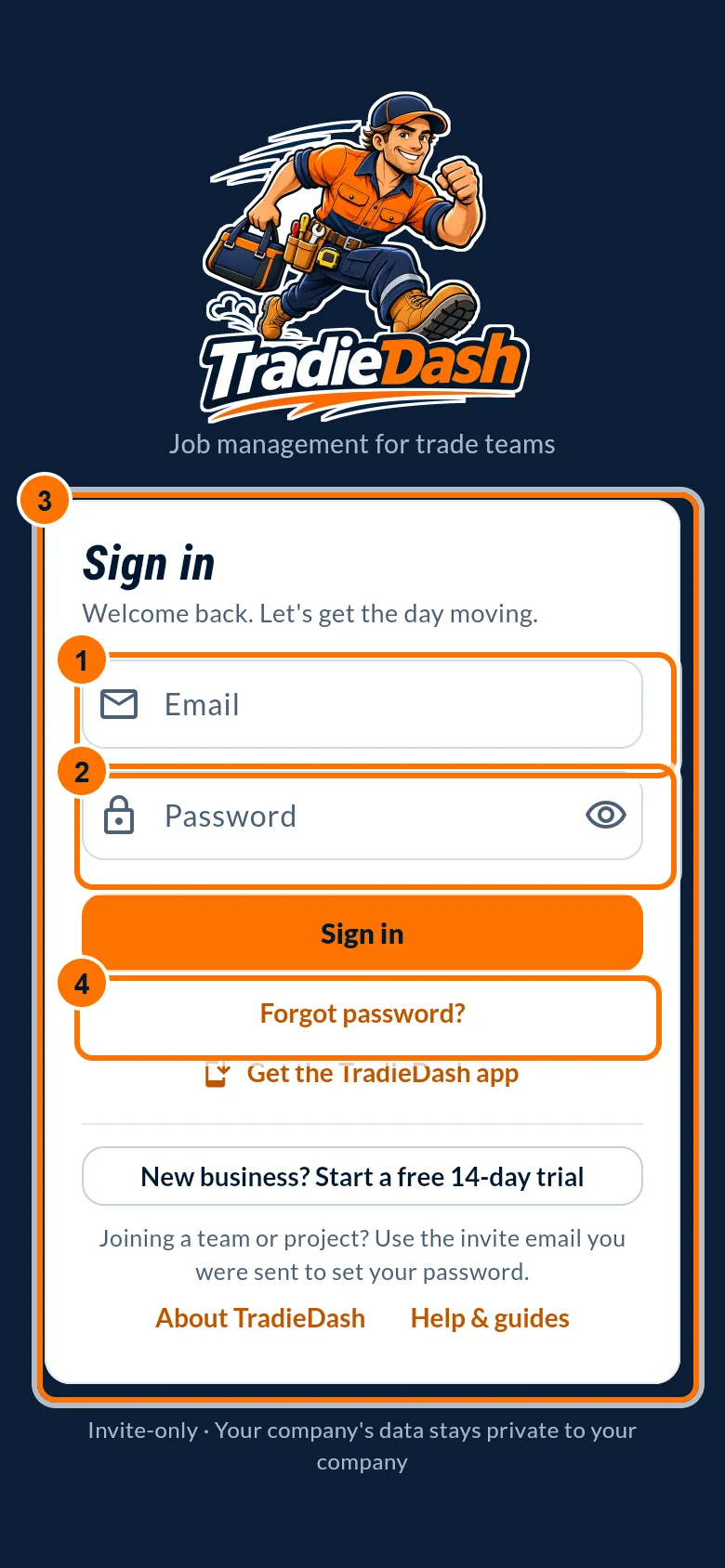
Accepting your invitation and signing in
- Open the email from TradieDash and tap the link (it may say "Reset your password". That is your invitation).
- Choose a password and tap Continue.
- Sign in at tradiedash.com.au/app, then add TradieDash to your home screen (see Installing TradieDash).
Finding your work
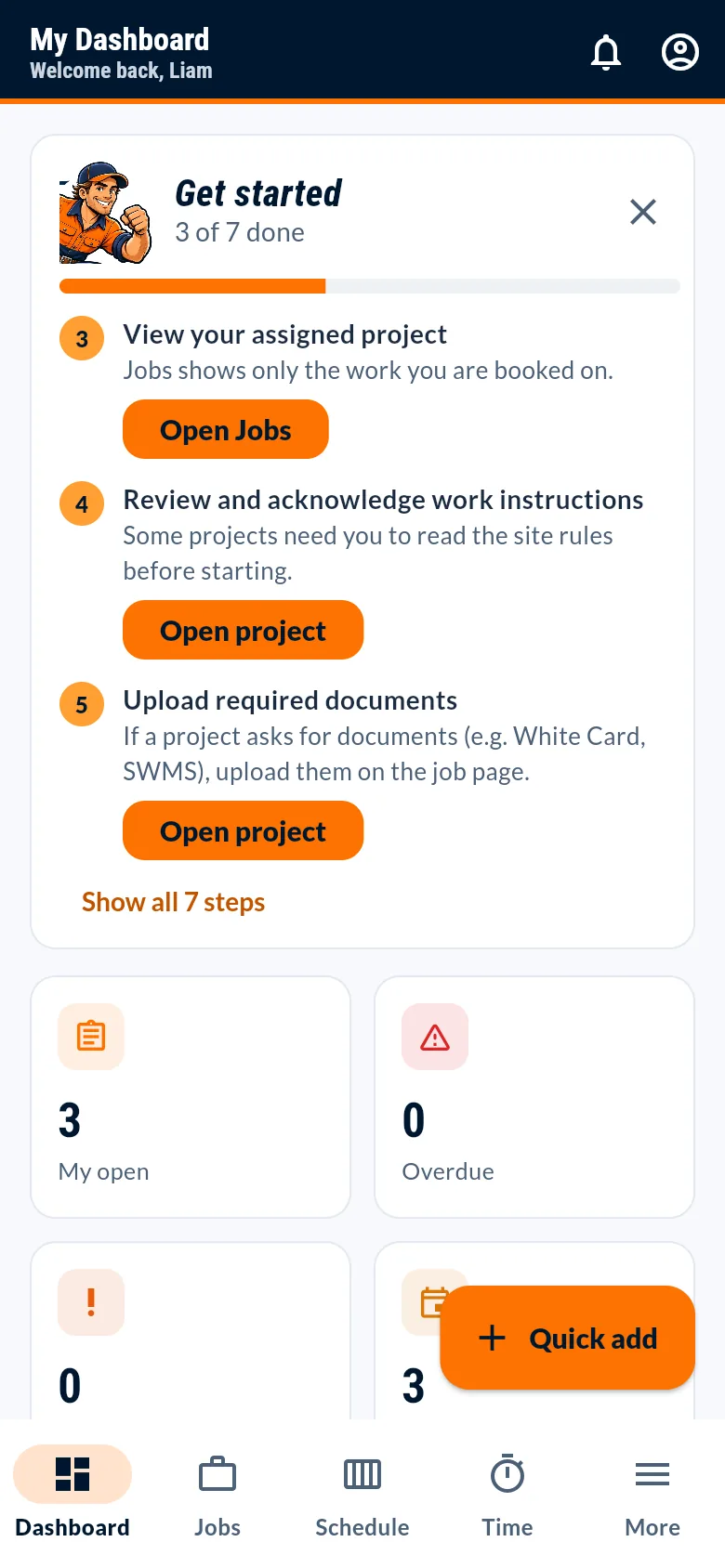
- Your tabs are Dashboard, Jobs, Schedule, Time and More.
- Your Dashboard lists your open, overdue and in-progress tasks.
- Jobs shows the jobs you are on. Open a job to see the address, instructions and your tasks. Schedule shows when you are booked.
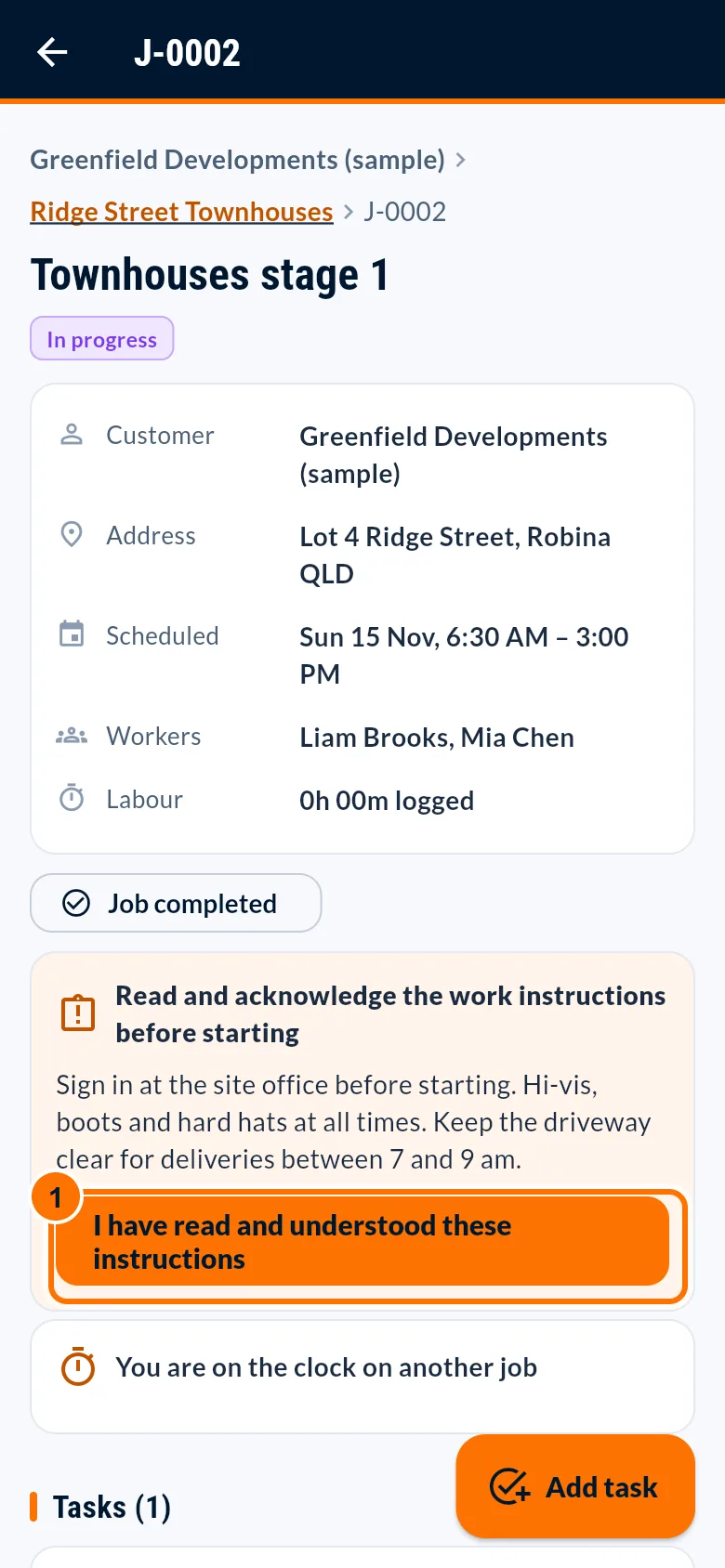
Reviewing job instructions
- If the job has work instructions, read them and tap "I have read and understood these instructions" before starting.
Checking task requirements and recording progress
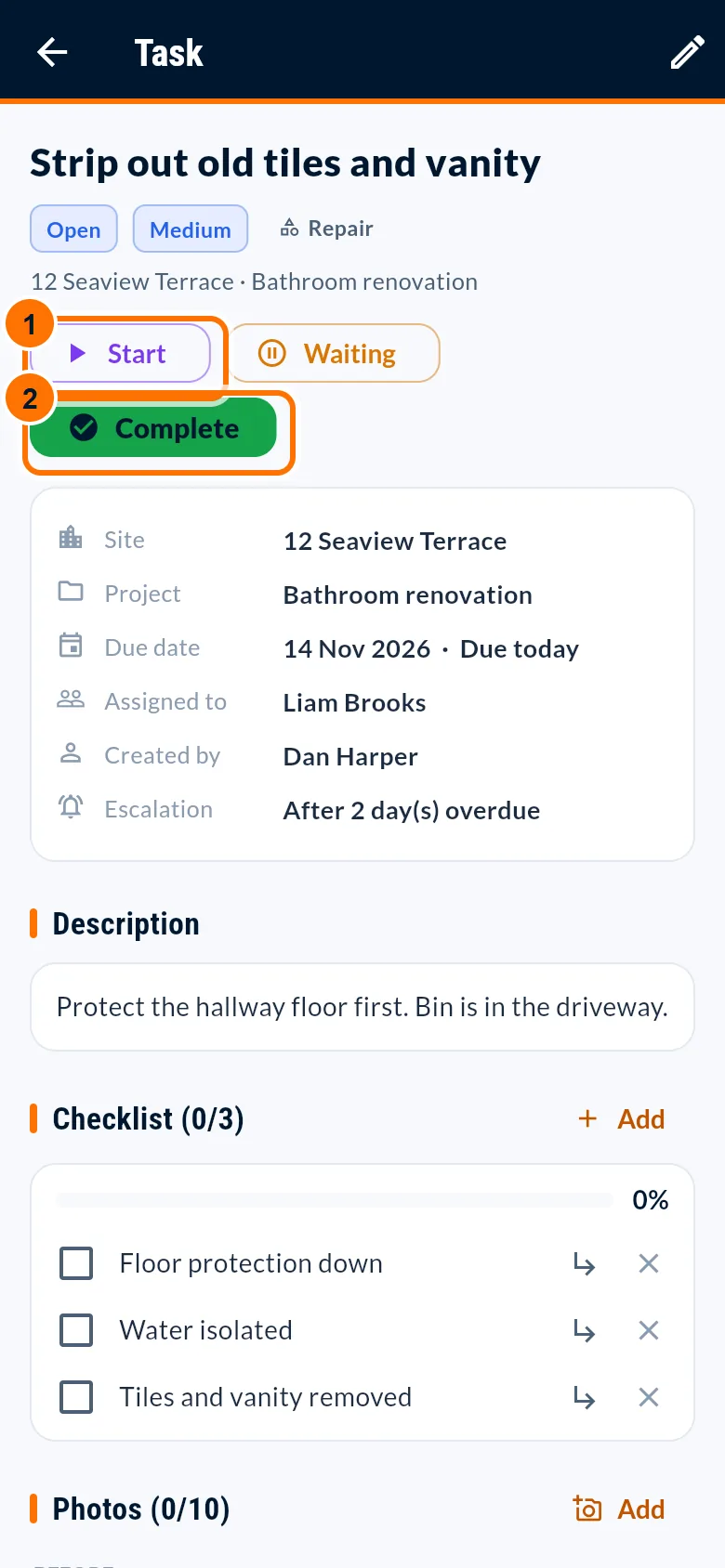
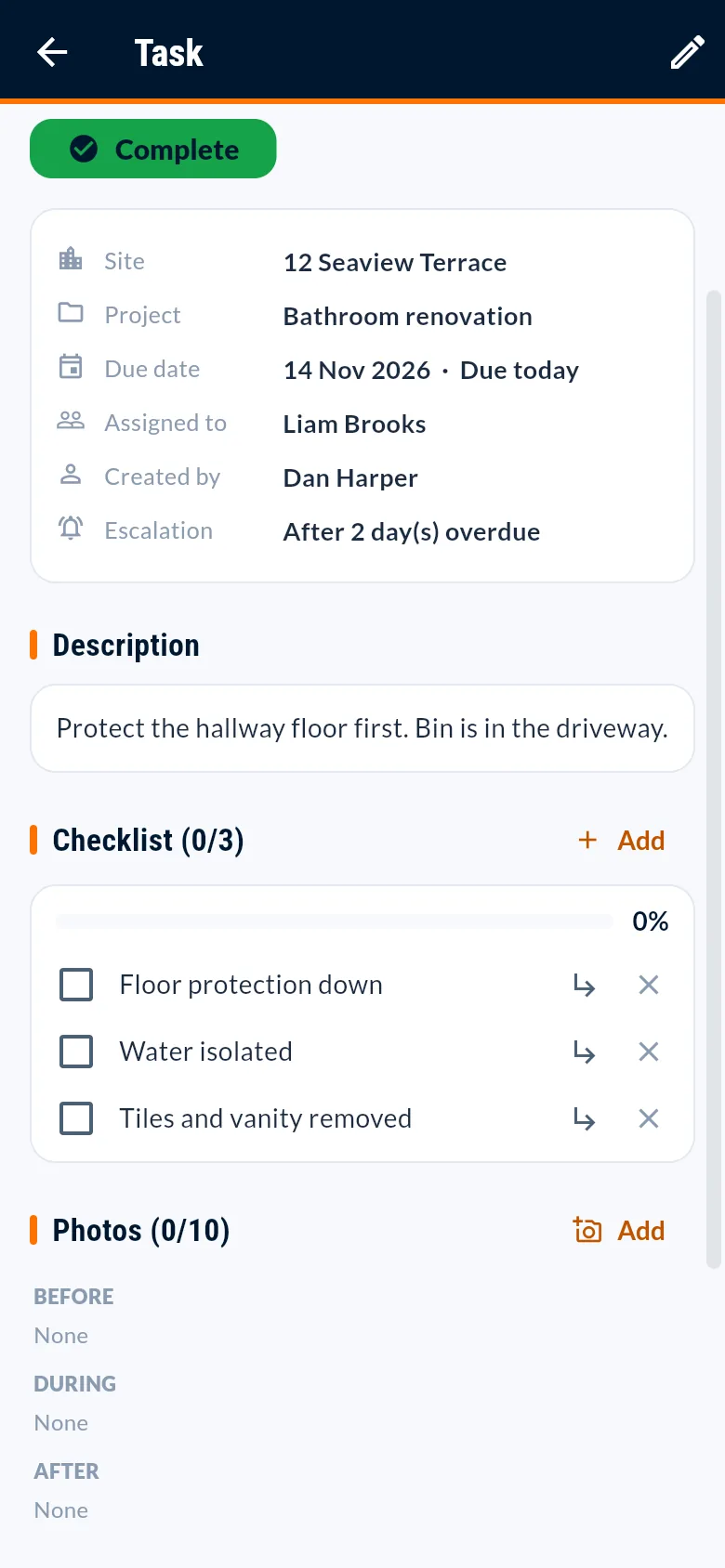
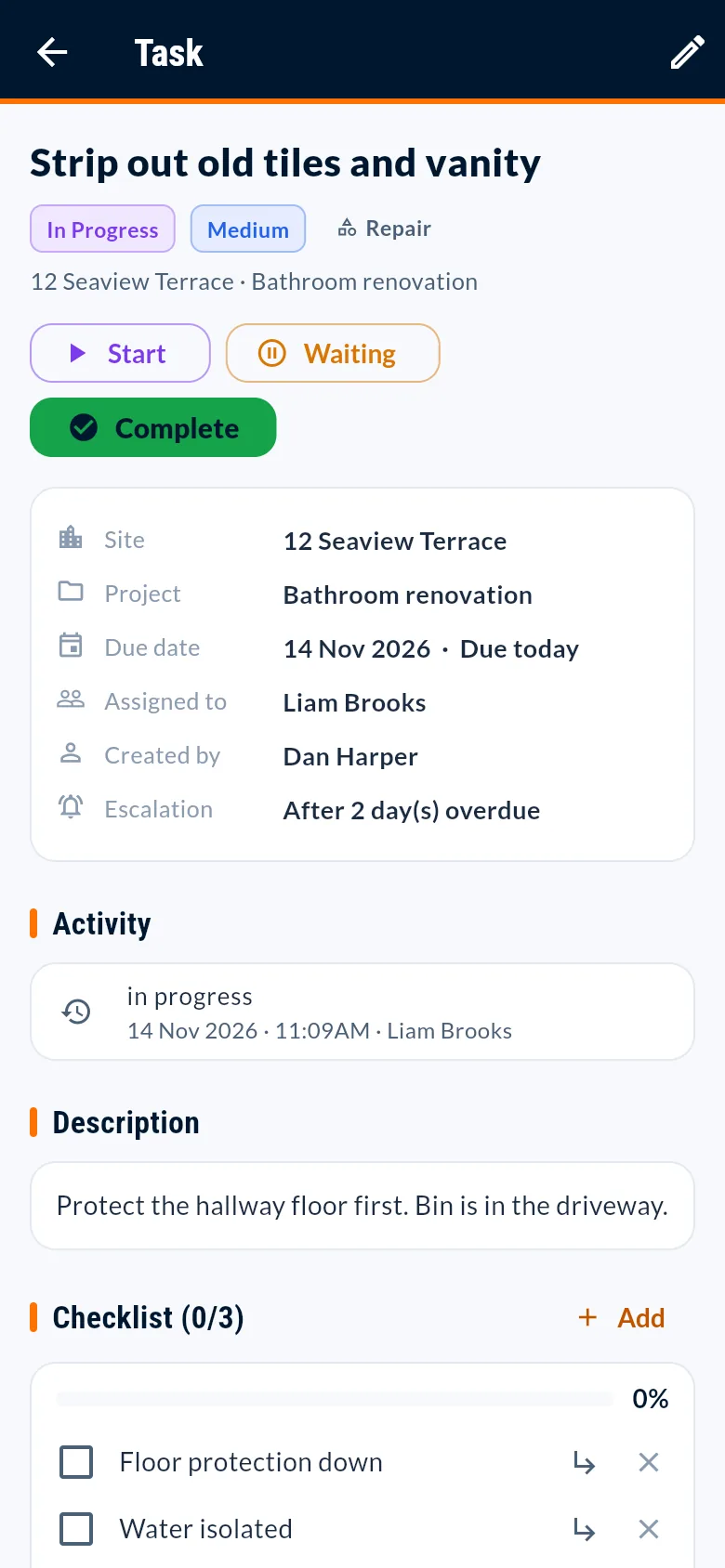
- Open the task. Read the details and the checklist.
- Tap Start when you begin, Waiting if you are held up, and tick checklist items as you go.
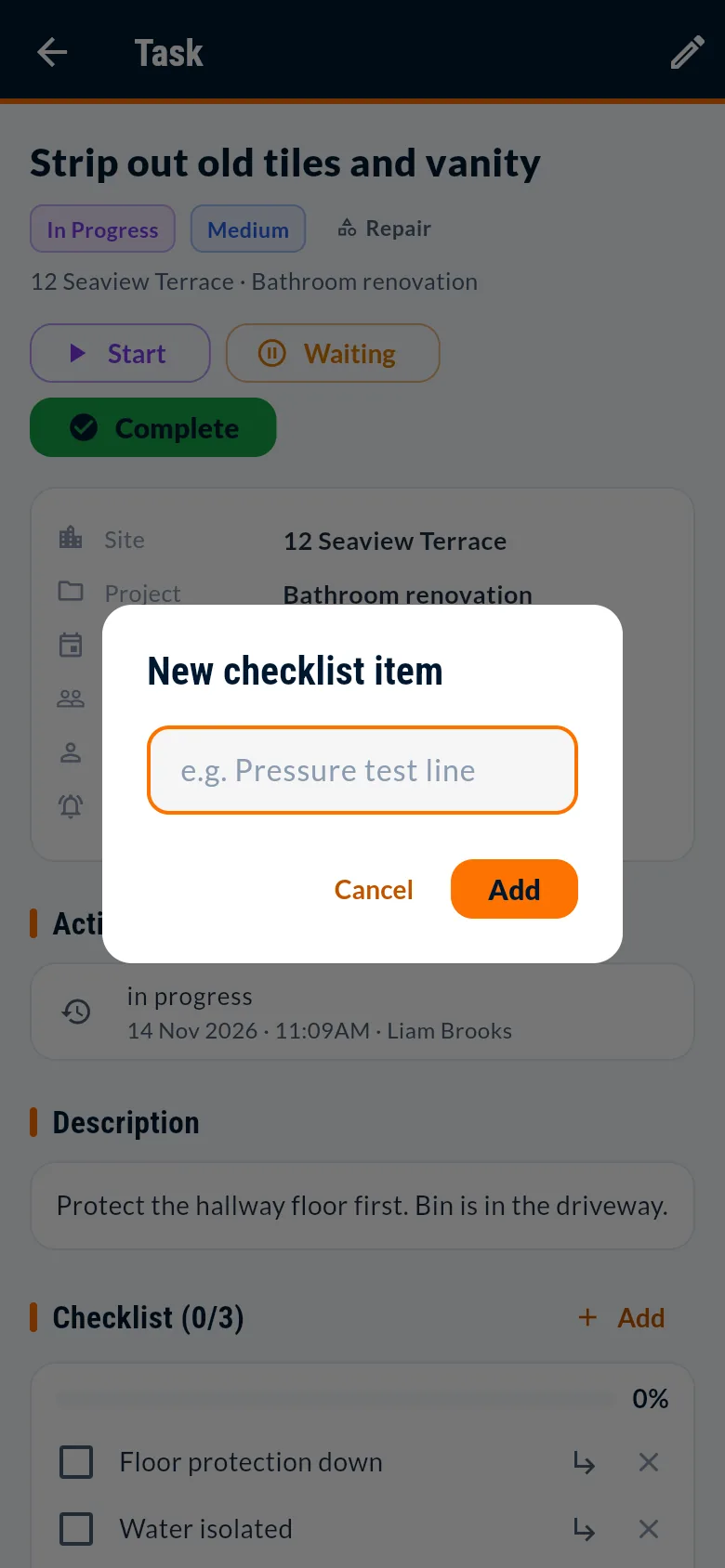
- Add a note to tell the office anything they need to know.
Uploading photos and evidence
- On the task, tap Add next to photos, then choose to take a photo or upload one.
- If the task needs a completion photo, add it before tapping Complete.
Recording your time
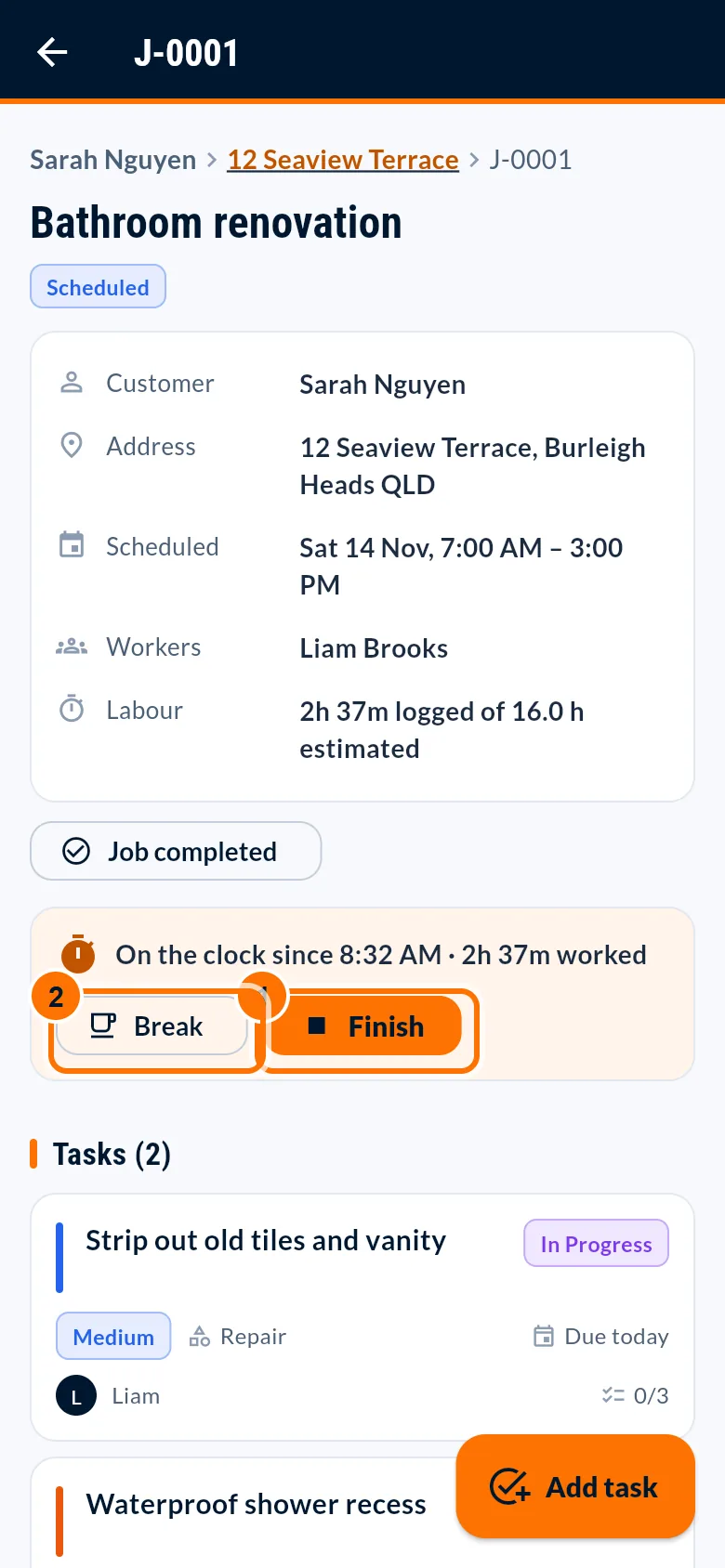
- On the job tap Start work when you arrive. Use Break and Resume as needed.
- Tap Finish and add any notes for your manager.
- The Time tab shows your hours today and this week. Use Add missed time if you forgot to clock on.
Completing tasks
- Tap Complete. If your manager must approve the work, the task shows "Completed: awaiting manager approval".
- On tasks shared by several workers, tap Submit my part. The task completes when everyone has submitted.
What information you can see
You see only the jobs and tasks assigned to you, their sites and documents, and your own time. You can't see customer records, prices, quotes, invoices, other workers' tasks or other businesses' data. Your manager sees what you record.
Screenshots show a fictional sample business. Your own screens show your data.