Getting started with TradieDash
TradieDash keeps your customers, jobs, tasks, schedule, timesheets and subcontractors in one place. This page gets a new business productive in about 15 minutes. You can do everything on a phone, but the first setup is quickest on a computer.
1. Create your account or sign in (2 minutes)
Business owners sign up on the website. Staff and subcontractors join through the invitation email their business sends them.
- Open the email from TradieDash. It may be titled "Reset your password for TradieDash". That is your invitation.
- Tap the link, choose a password, then tap Continue.
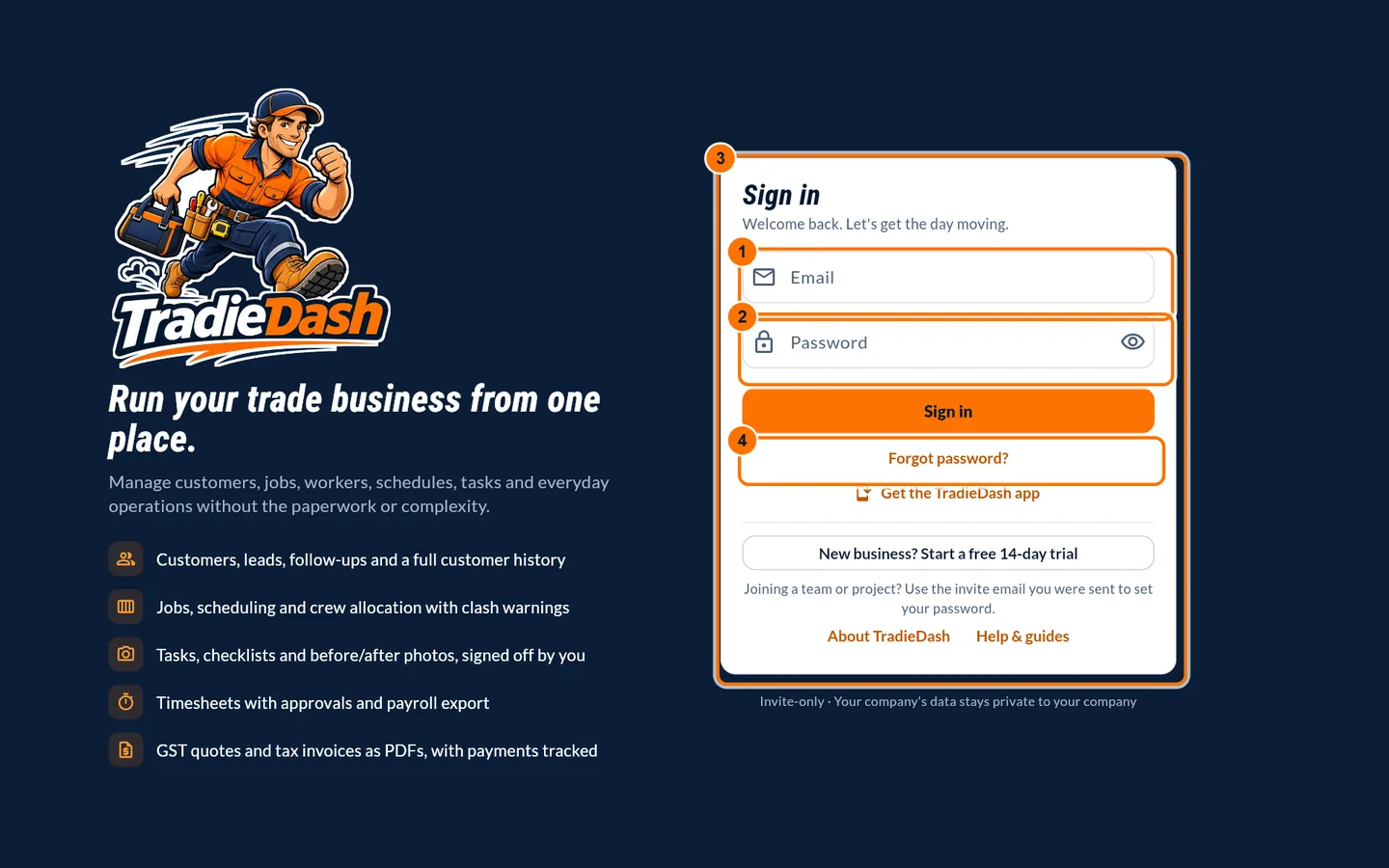
- Sign in at tradiedash.com.au/app with your email address and the password you chose.
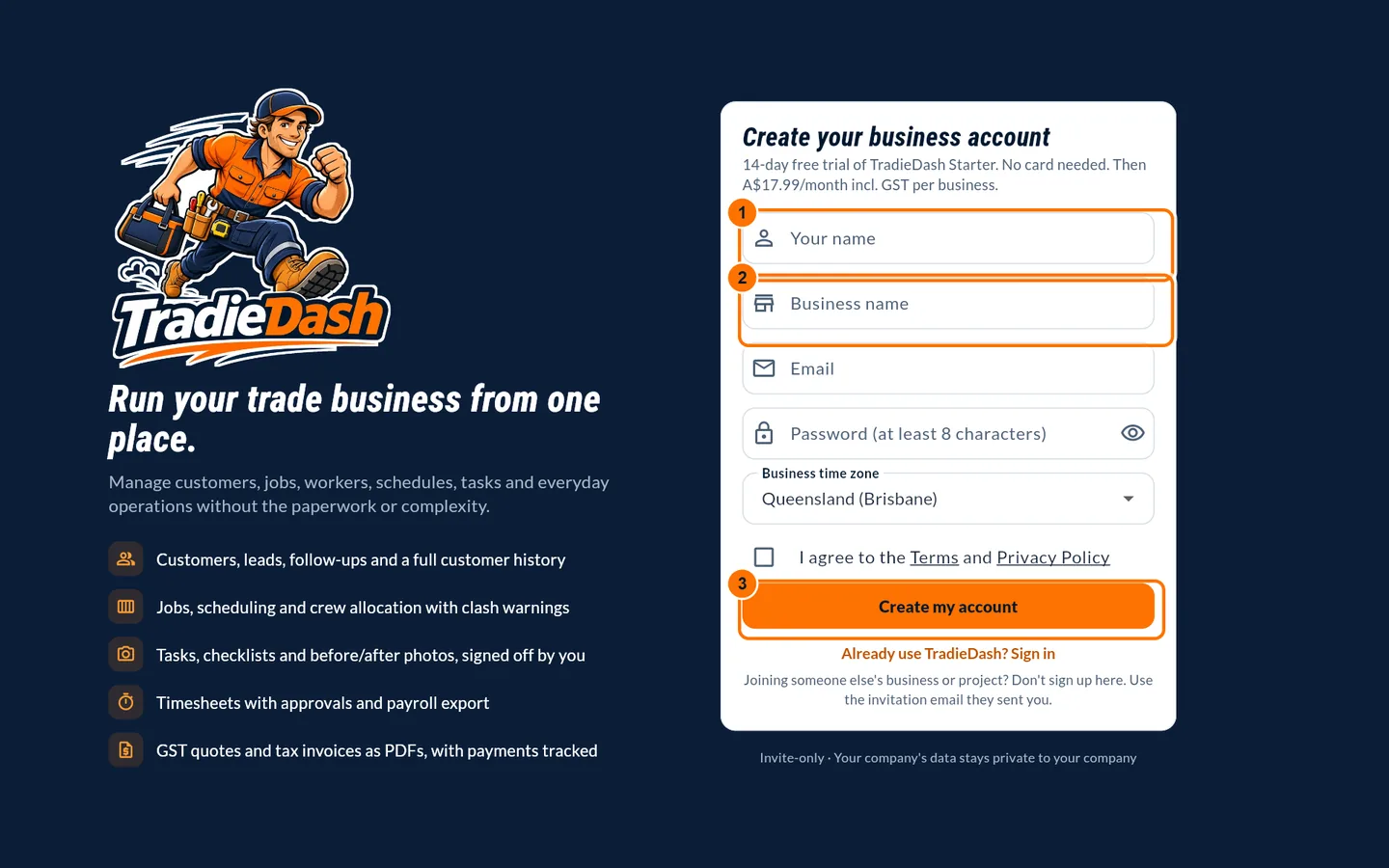
- New business? Press "Get started with TradieDash" on tradiedash.com.au, enter your name, business, email and password, and press Create my account. Your 14-day free trial starts straight away, with no card needed.
Common problems
- I can't find the email.
- Check Junk or Spam. Then ask the person who invited you to resend it.
- The link says it has expired.
- Links only work once and for a short time. On the sign-in page enter your email and tap "Forgot password?" for a fresh one.
2. Follow the setup checklist (5 minutes)
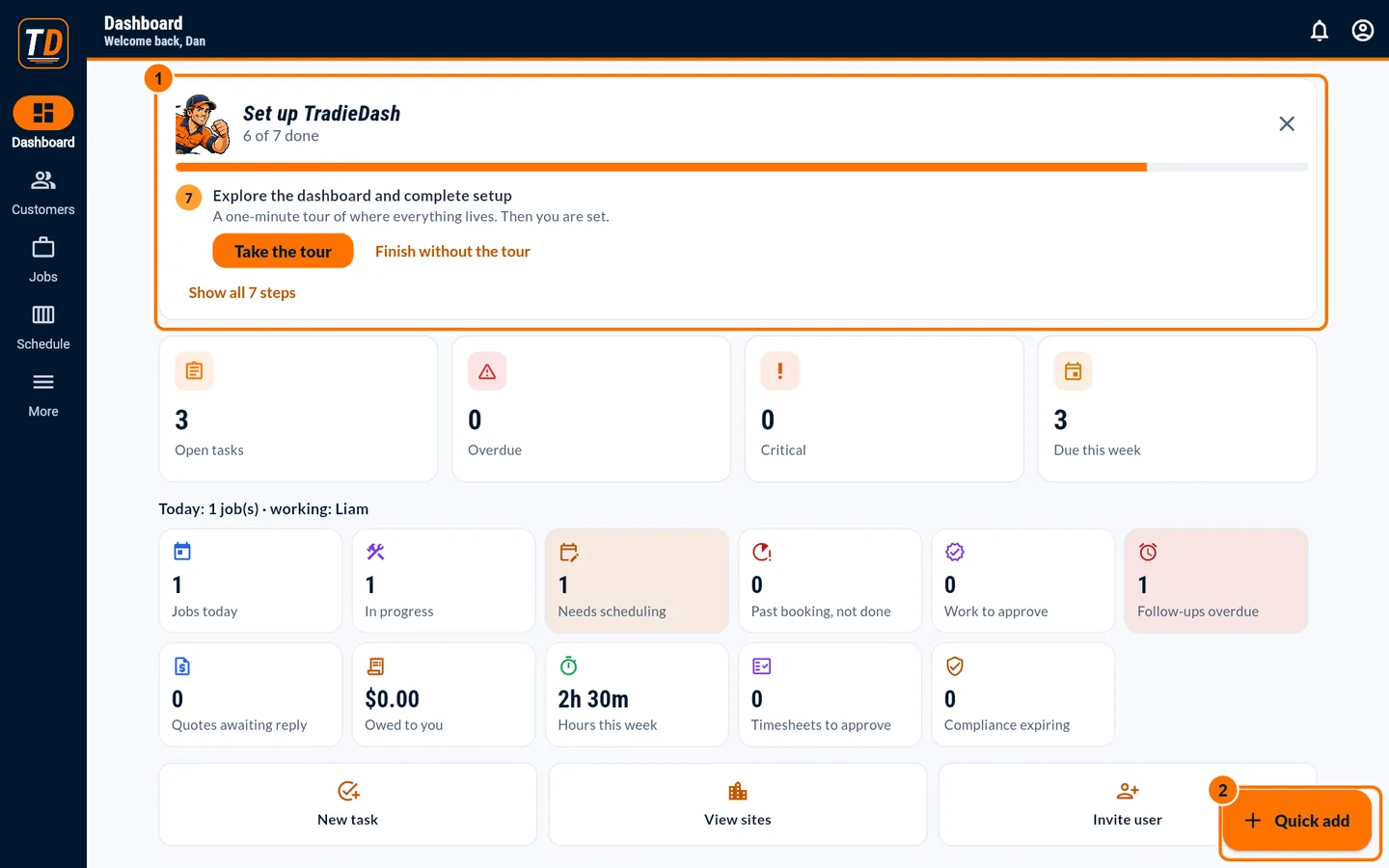
The checklist shows the next most useful step for your role and ticks itself off as you work.
- On the Dashboard, read the first unticked step and press its button. It takes you straight to the right screen.
- Complete your business details: name, ABN, phone and address. They appear on quotes and invoices.
- Hide the checklist with the X at any time. Bring it back from More → Setup guide.
3. Add a customer and your first job (5 minutes)
A job belongs to a site (the address where work happens), and usually to a customer.
- Go to Customers → Add customer. Enter the name and phone, then press Add customer.
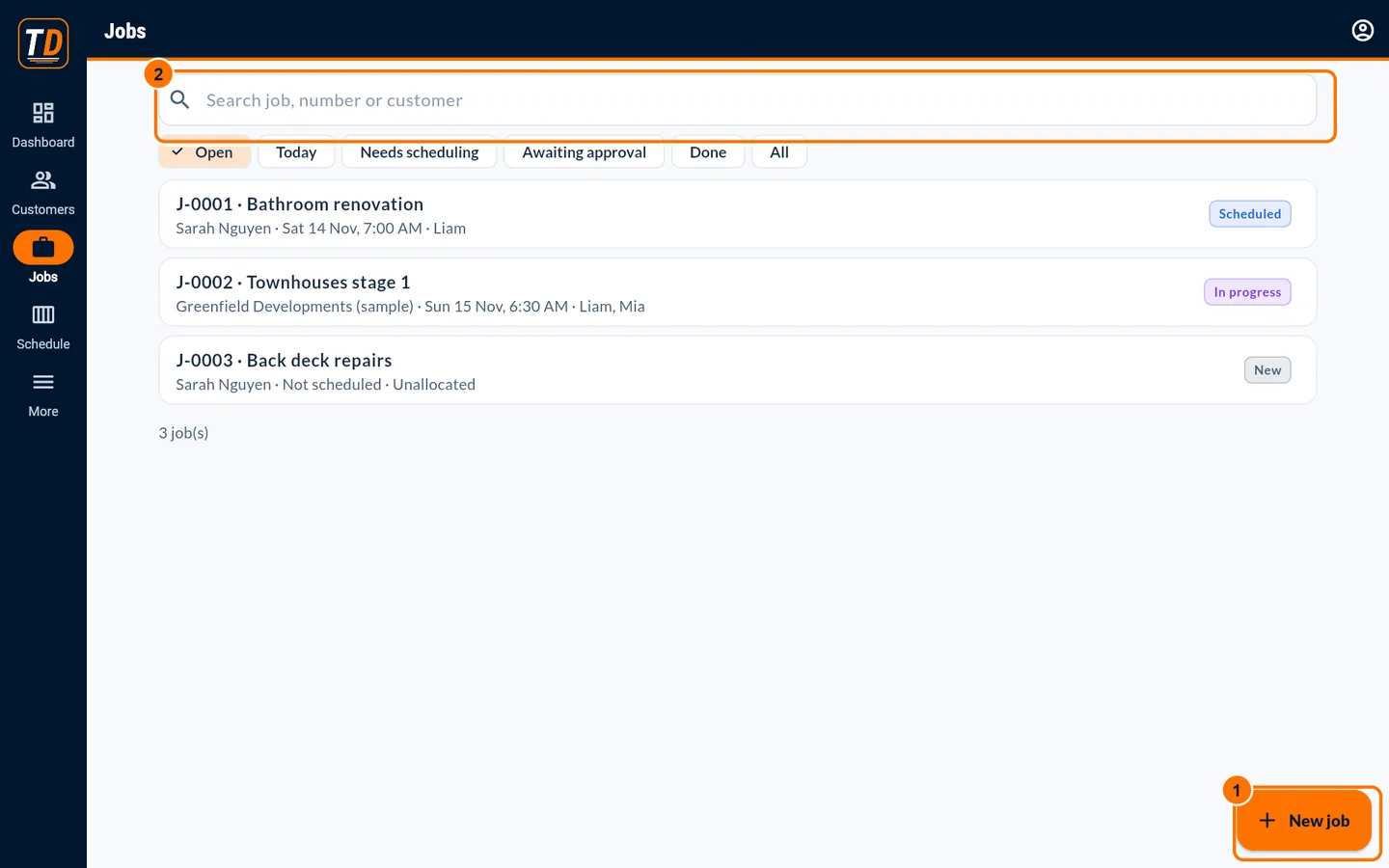
- Open the customer and press New job. Choose or add the site address, name the job, then save.
- On the job page, press Add task for each step of the work and assign it to a person.
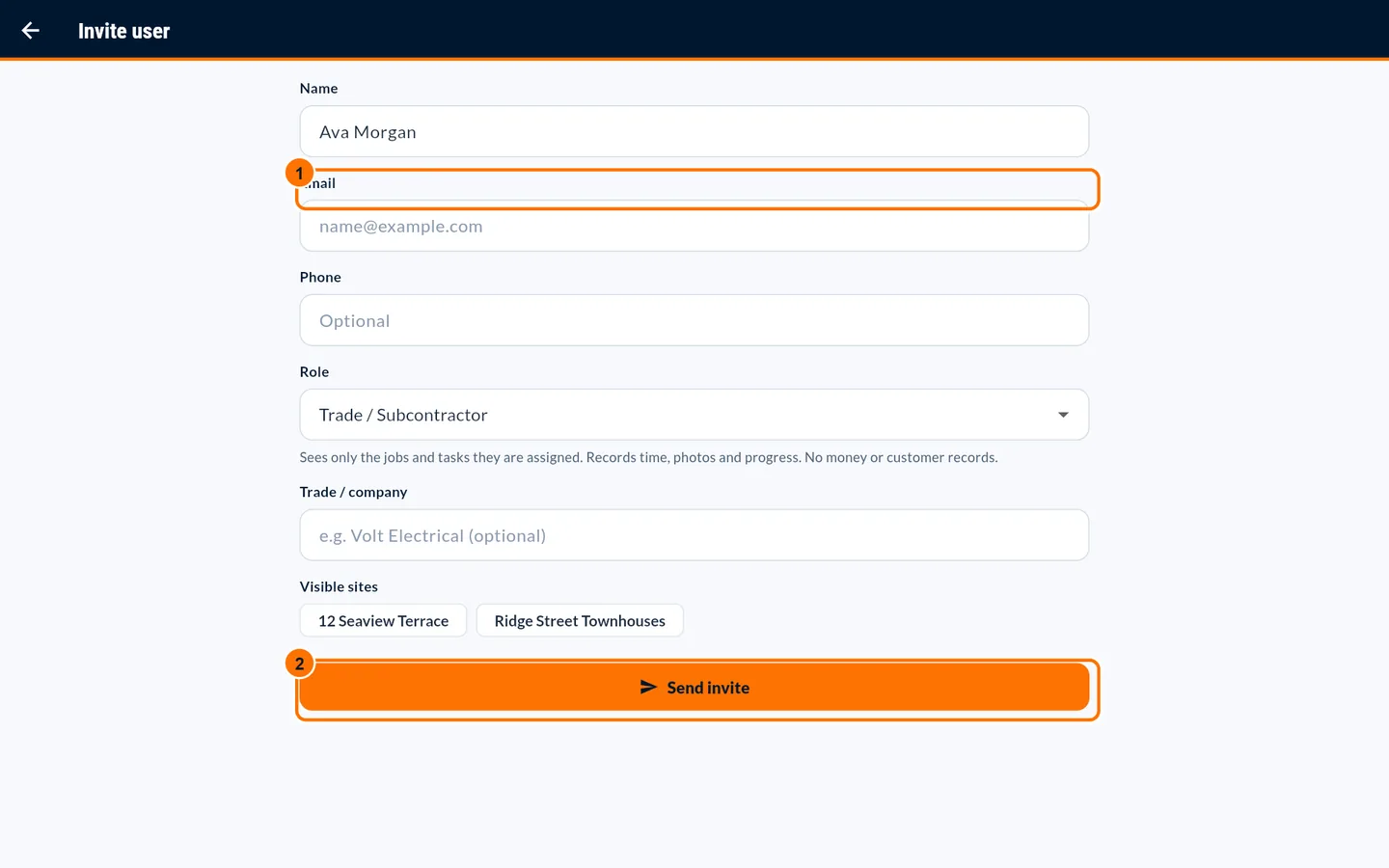
4. Invite your team (3 minutes)
Each person gets their own sign-in and sees only what their role allows.
- Go to More → Team → Invite user.
- Enter their name and email, choose a role, and press Send invite.
- Text them the message TradieDash shows, so they know to expect the email.
Put TradieDash on your phone
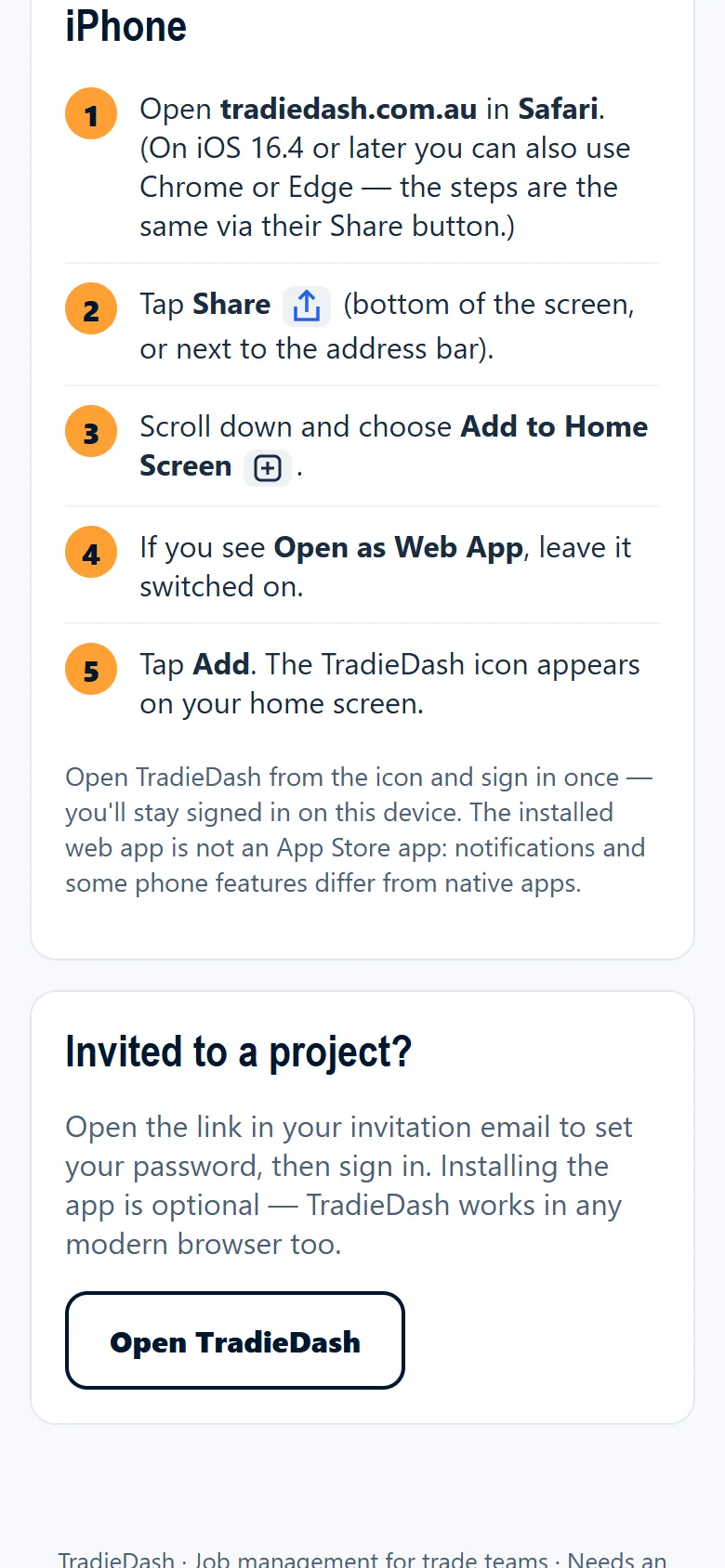
TradieDash installs from the browser. There is nothing to download from an app store.
- See Installing TradieDash for iPhone, Android, Windows and Mac steps.
Screenshots show a fictional sample business. Your own screens show your data.