Installing TradieDash
Everyone
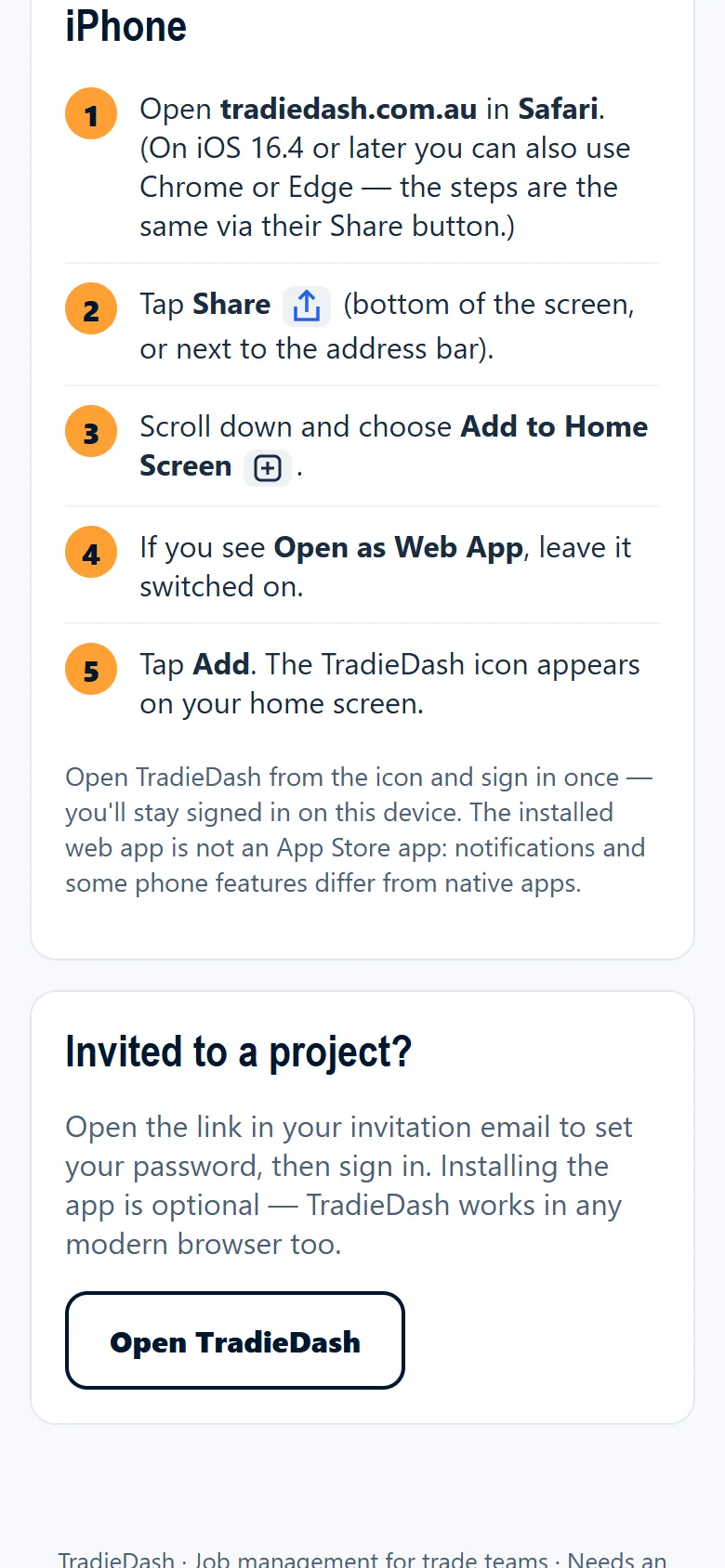
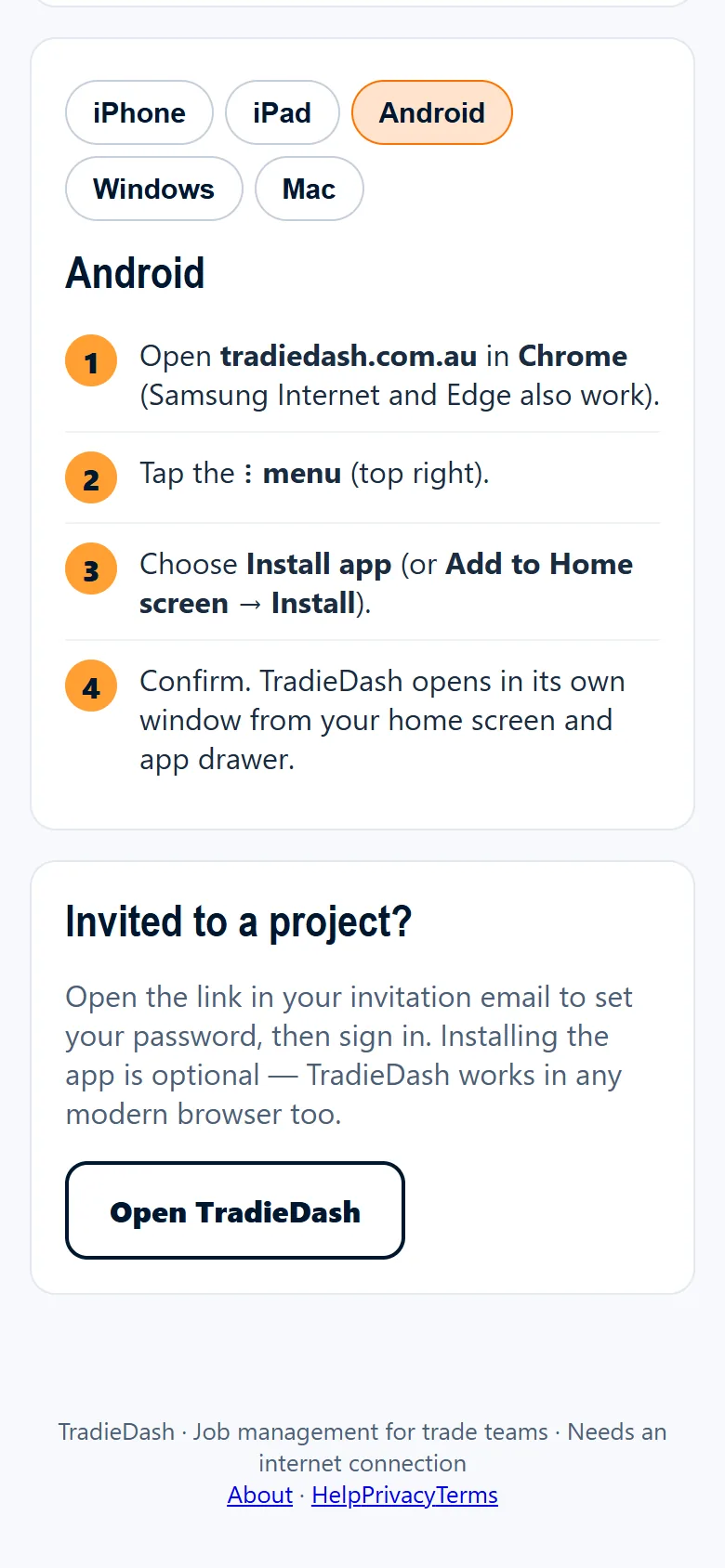
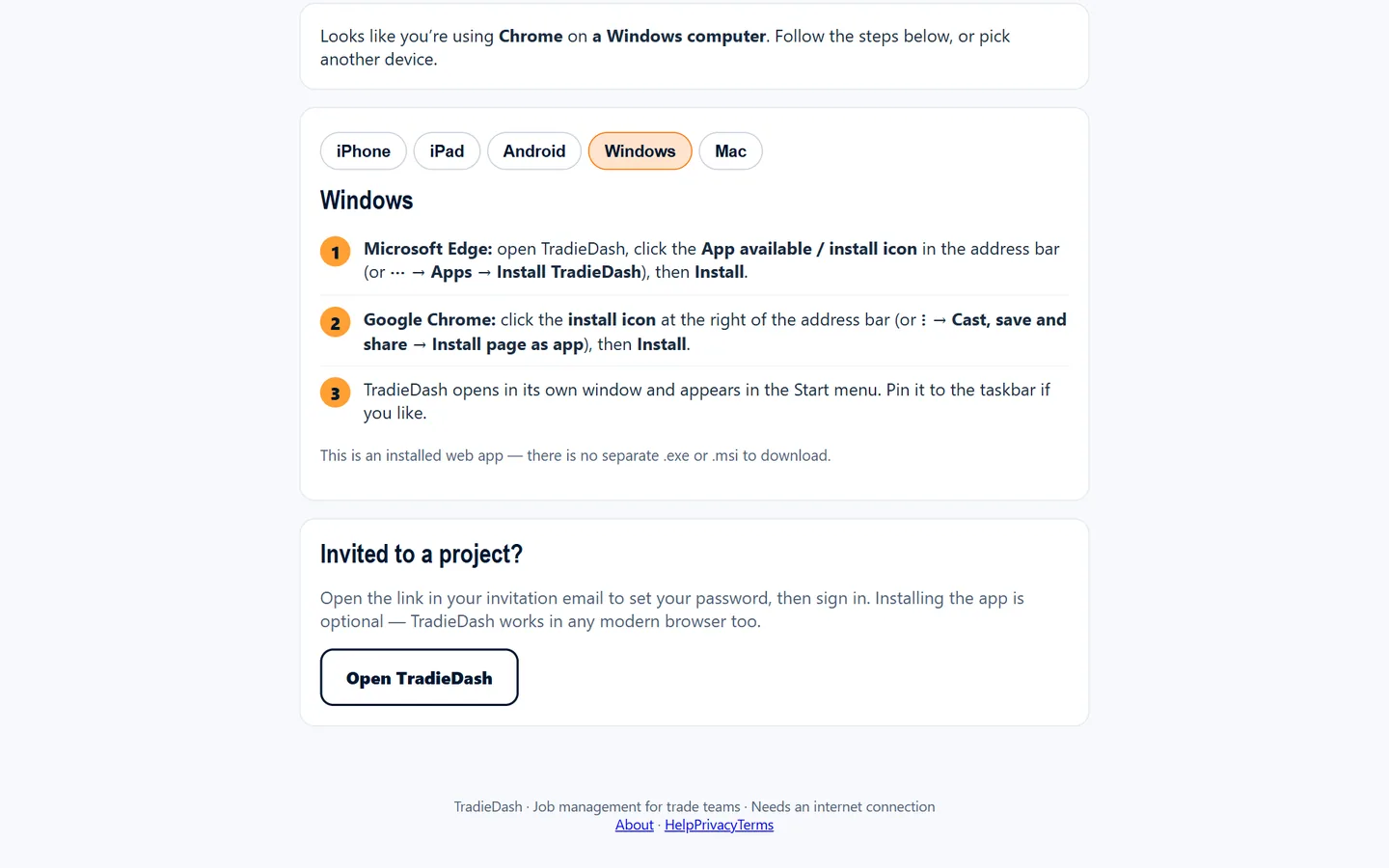
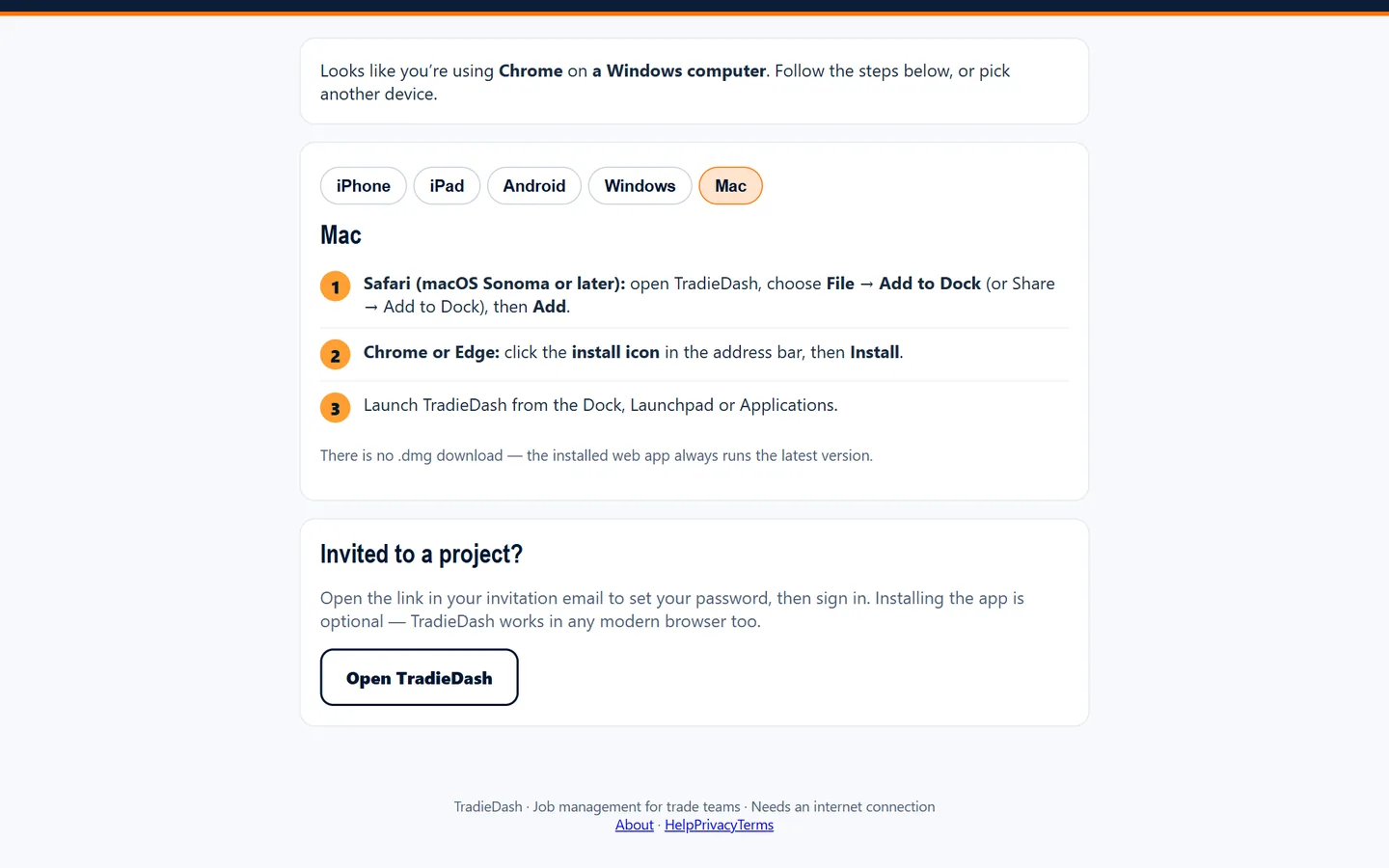
TradieDash is a web app you can install from your browser. It opens like a normal app, with its own icon, and needs an internet connection. The steps below follow each platform's standard install method. Screenshots are of TradieDash's own install page, with steps for each device.
iPhone or iPad (Safari)
- Open tradiedash.com.au/app in Safari.
- Tap the Share button (a square with an arrow).
- Scroll down and tap Add to Home Screen, then Add.
- Open TradieDash from your home screen and sign in once more. The home-screen app keeps its own sign-in, separate from Safari.
Common problems
- There is no "Add to Home Screen".
- Use Safari (or, on iOS 16.4 and later, Chrome or Edge through their Share button). Private browsing tabs can't add apps.
Android (Chrome)
- Open tradiedash.com.au/app in Chrome.
- Tap the ⋮ menu → Install app (or Add to Home screen).
- Confirm, then open TradieDash from your home screen.
Windows (Edge or Chrome)
- Open tradiedash.com.au/app in Microsoft Edge or Google Chrome.
- Click the install icon at the right of the address bar (or the menu → Apps → Install TradieDash).
- TradieDash opens in its own window and appears in the Start menu.
Mac (Safari, Chrome or Edge)
- Safari (macOS Sonoma or later): File → Add to Dock.
- Chrome or Edge: click the install icon in the address bar.
- Open TradieDash from the Dock or Launchpad.
Good to know
TradieDash updates itself automatically, so there is nothing to update. It needs an internet connection. If you installed it earlier from siteworx-demo.web.app, that still works, but install again from tradiedash.com.au to use the new address.
Screenshots show a fictional sample business. Your own screens show your data.