Office / project manager guide
Office / Project or site manager
Office and project managers run the day-to-day: customers, jobs, the schedule, tasks, follow-ups and subcontractors. You see everything for your business except team management and business settings, which belong to the owner.
Getting around the dashboard
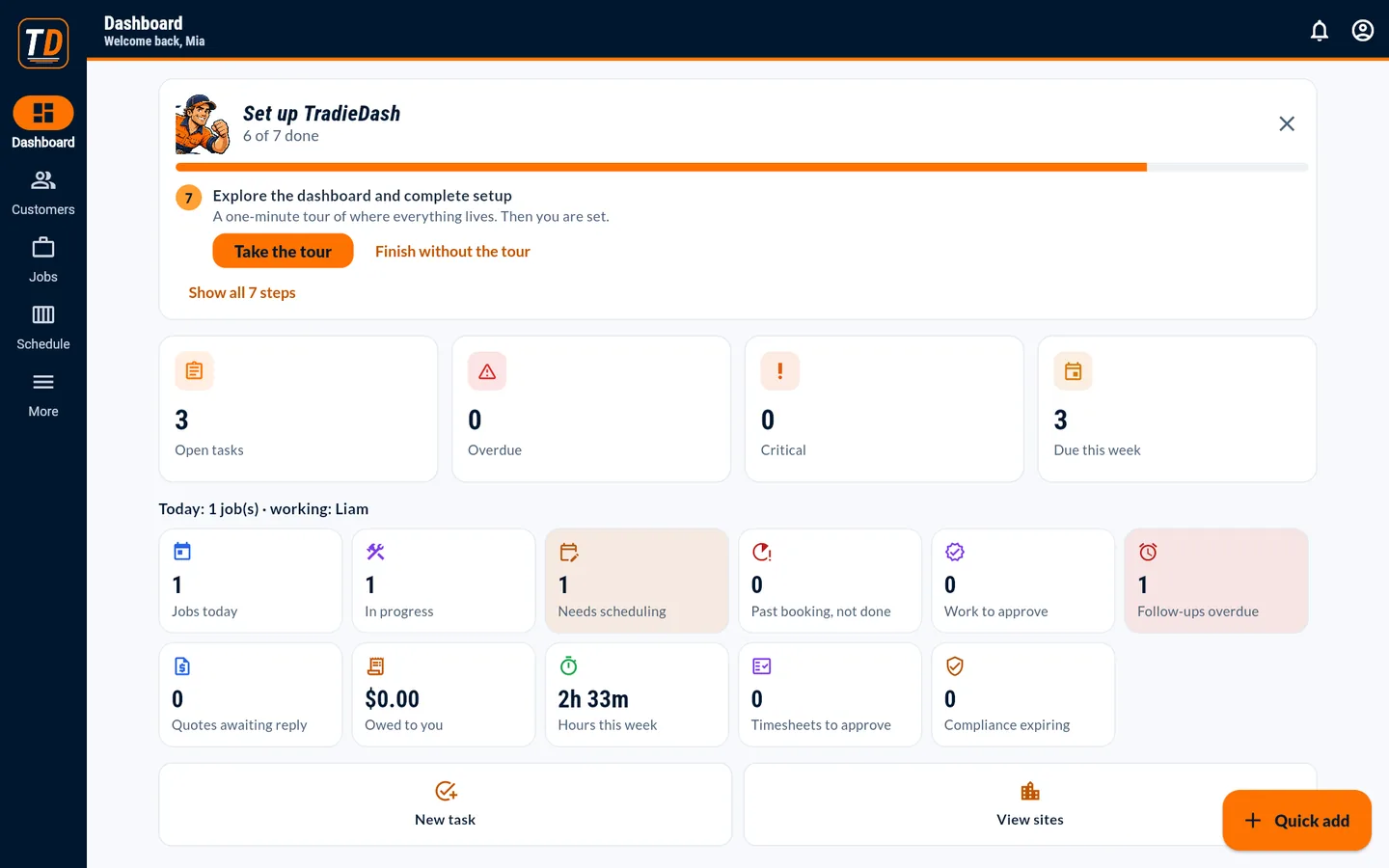
Five tabs: Dashboard, Customers, Jobs, Schedule and More. Quick add (bottom right) creates the common things from anywhere.
- Use the Dashboard tiles to jump to what needs attention: jobs today, needs scheduling, work to approve, follow-ups overdue.
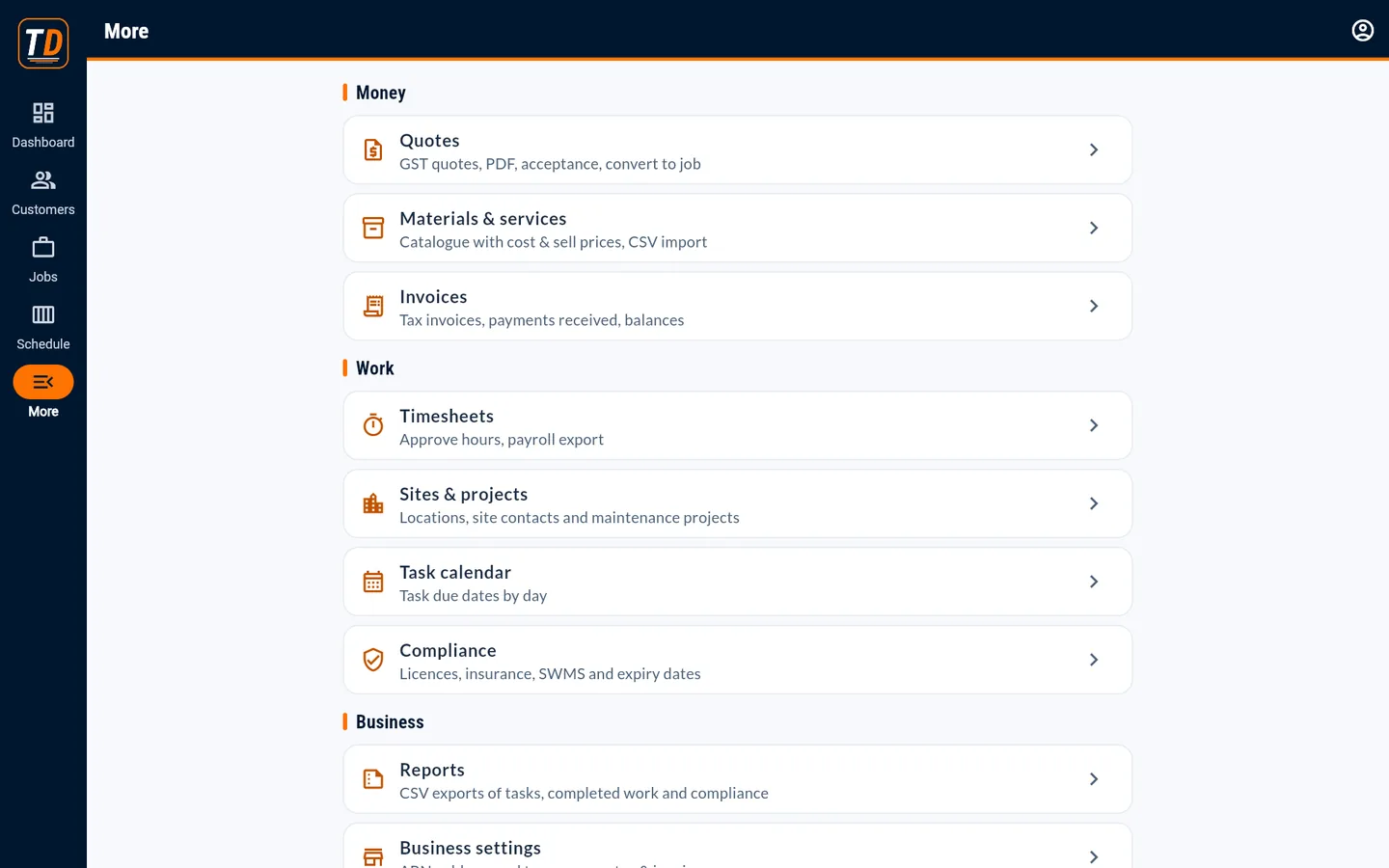
- Open More for quotes, invoices, timesheets, sites, compliance, reports and help.
Customer management
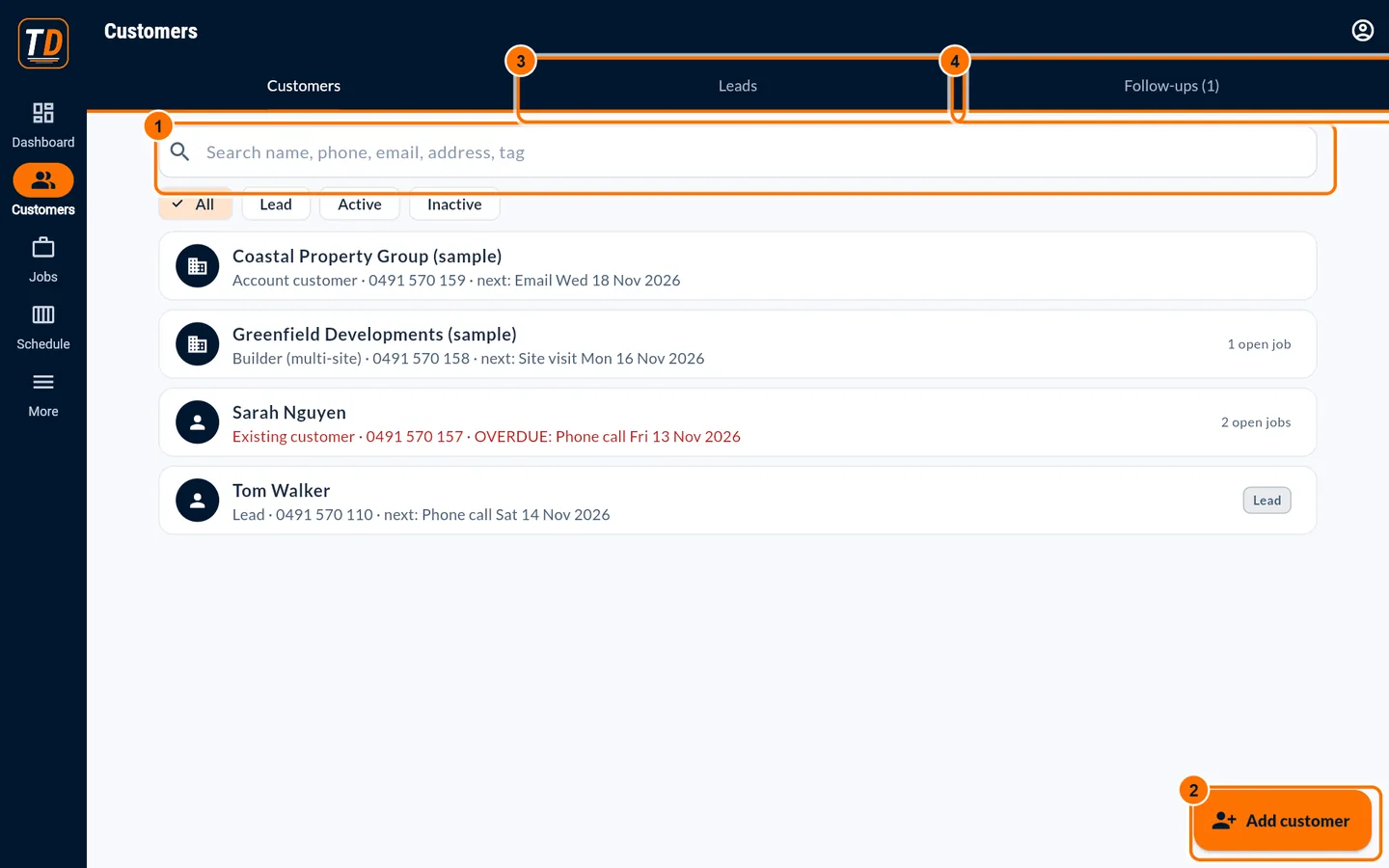
Same as the owner: add and edit customers, record leads, and log calls, emails and notes.
- Customers → Add customer, or open a customer to update it.
- Use Leads for enquiries, and Follow-ups for planned contact.
Jobs and sites
- Jobs → New job. Choose the customer and site, or add a new address.
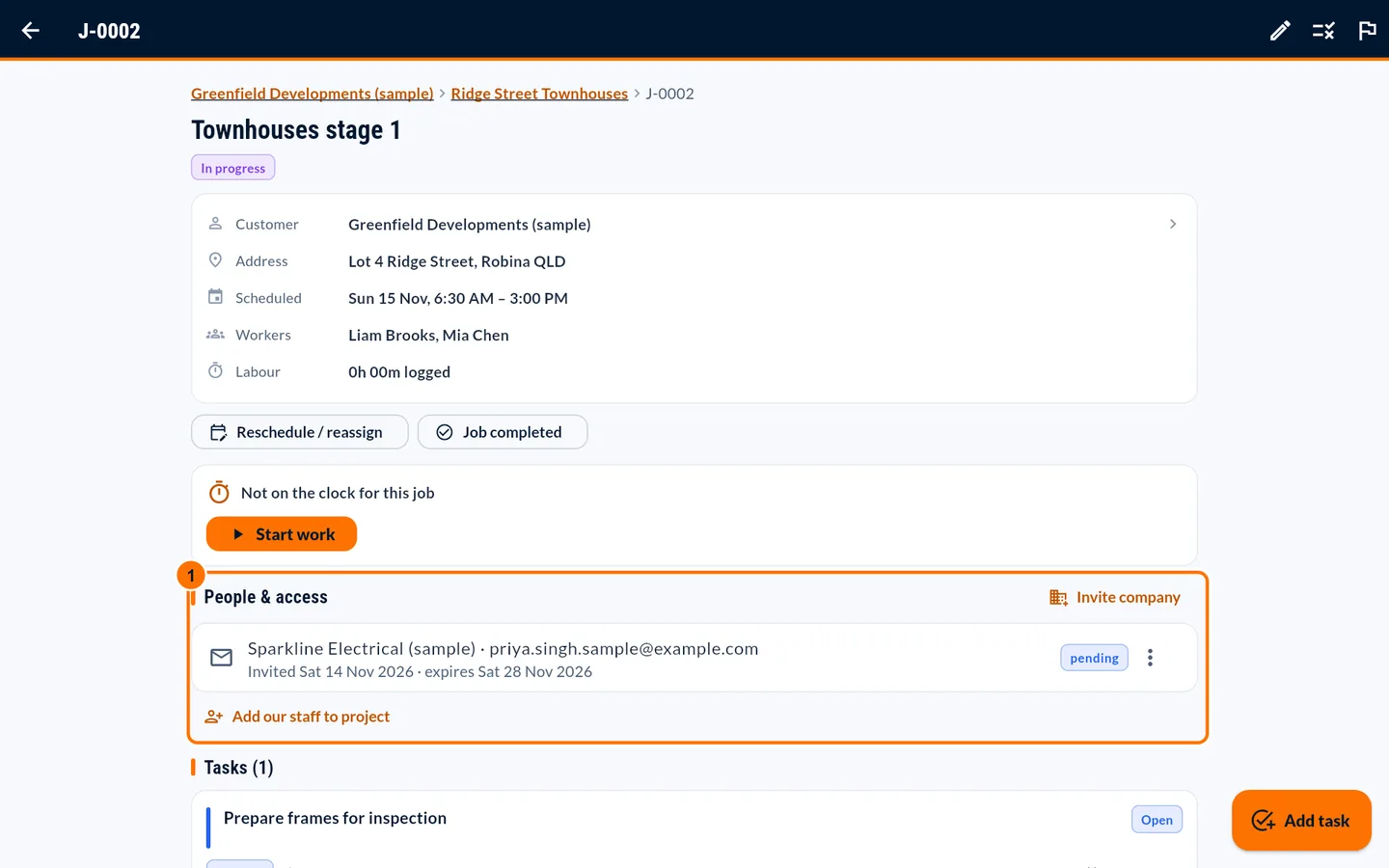
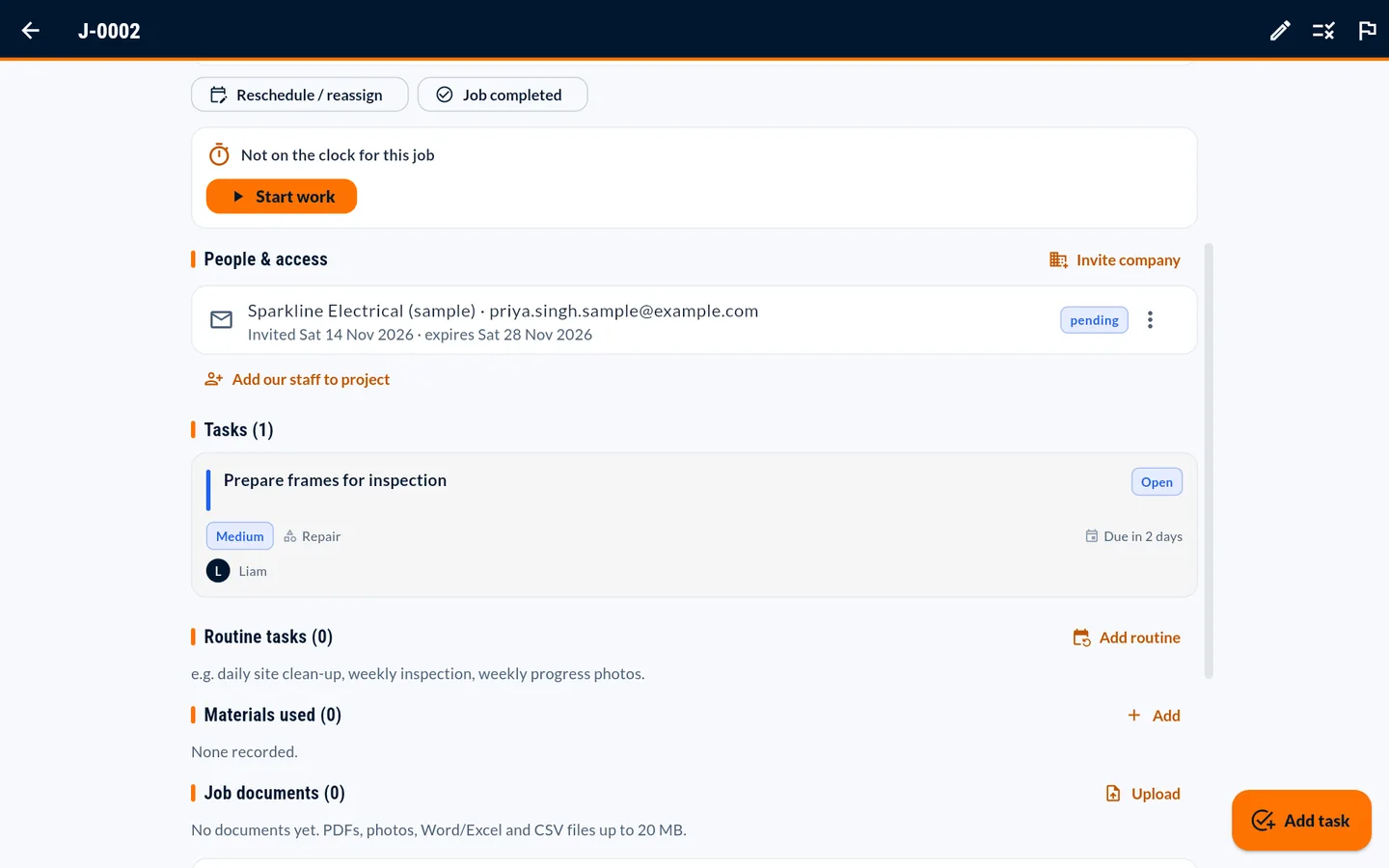
- On the job page: add tasks, upload documents, set project rules (flag icon), and watch People & access.
Scheduling and assigning workers
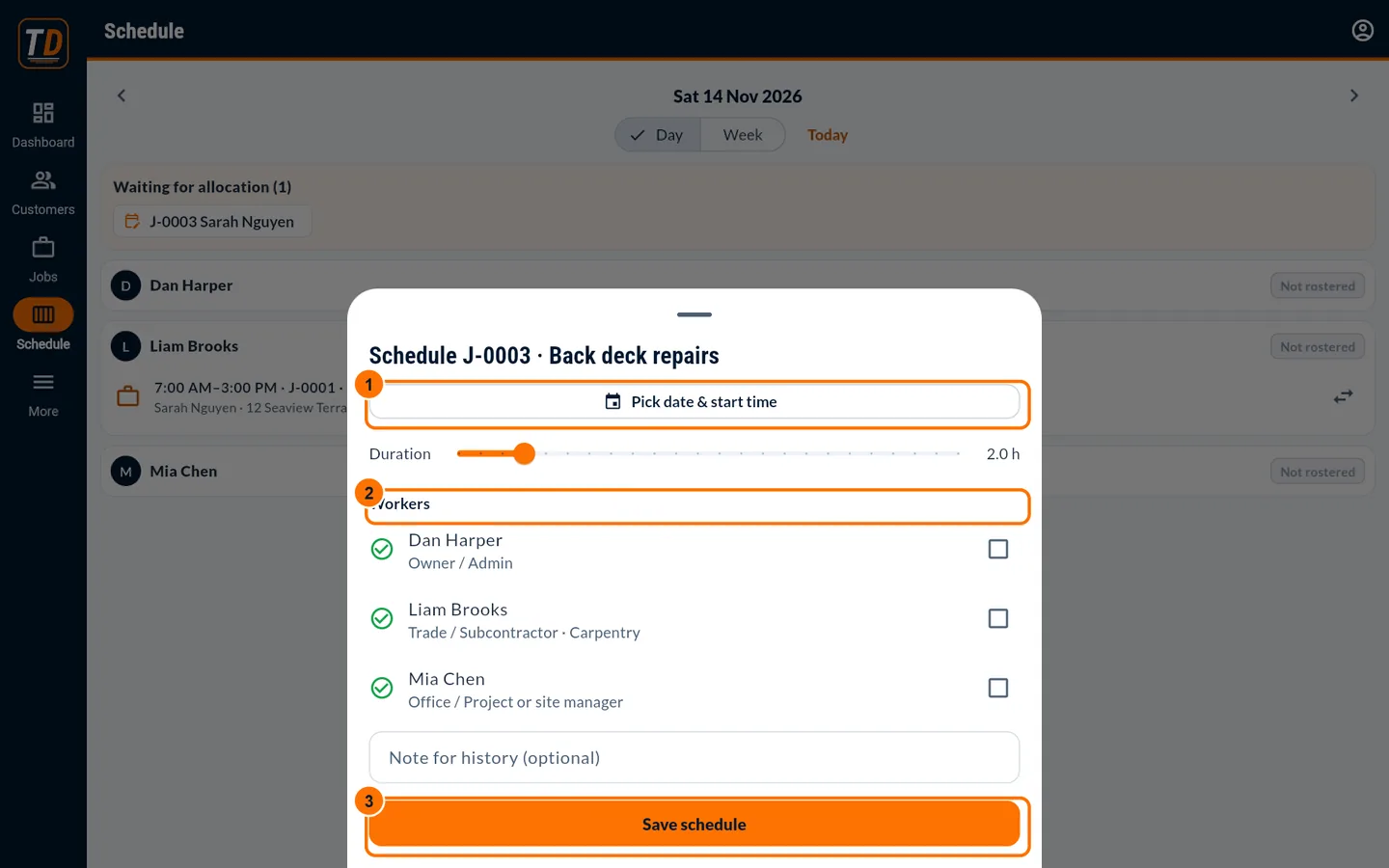
- Schedule → tap a job under "Waiting for allocation", or press Reschedule / reassign on the job.
- Pick the date and start time and the workers, then press Save schedule.
Creating and managing tasks
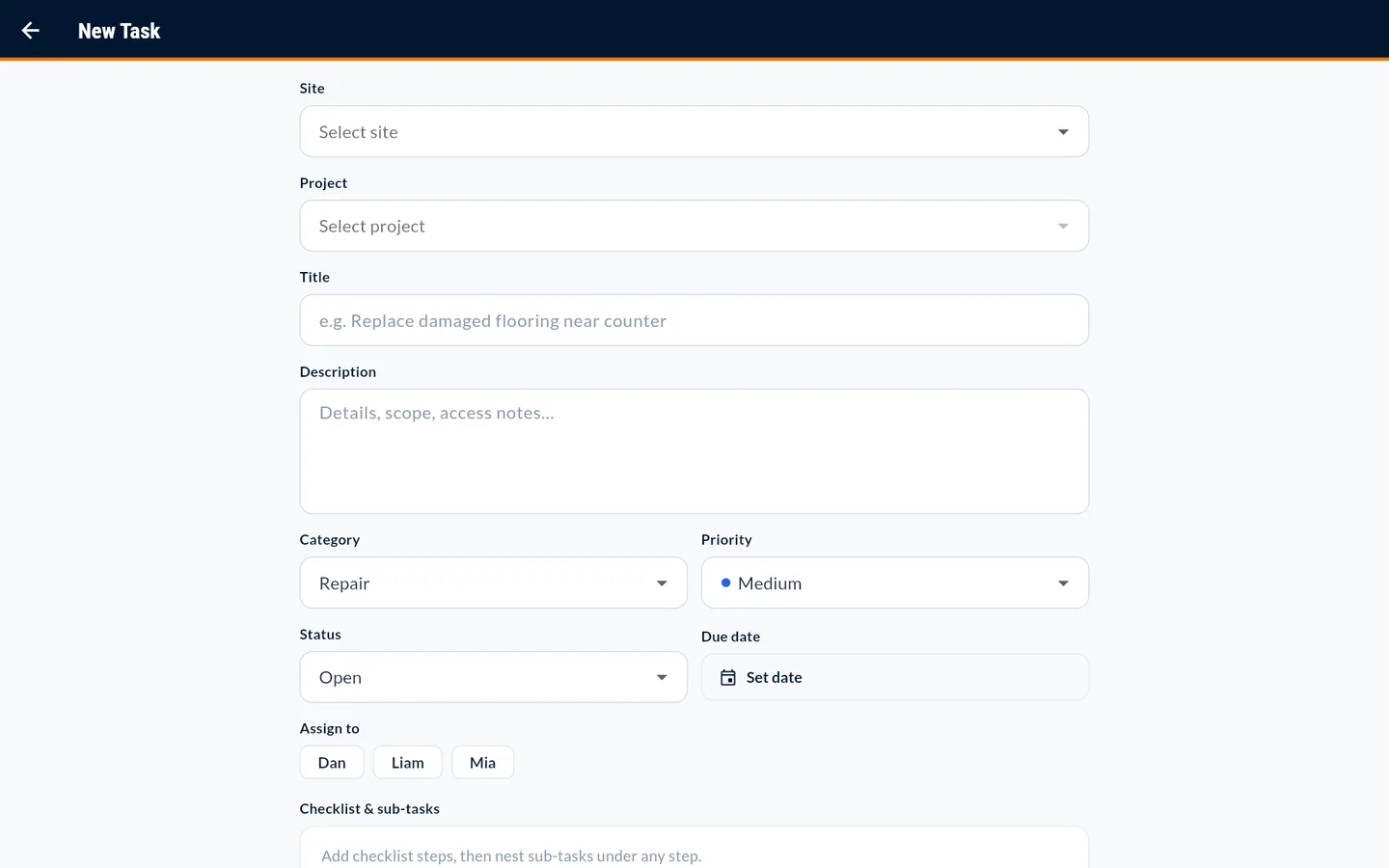
- Add task on the job (or Quick add → Add task). Assign people or a subcontractor company.
- Use the task menu to reassign, change escalation, or delete. Approve completed work when sign-off is required.
Recording follow-ups
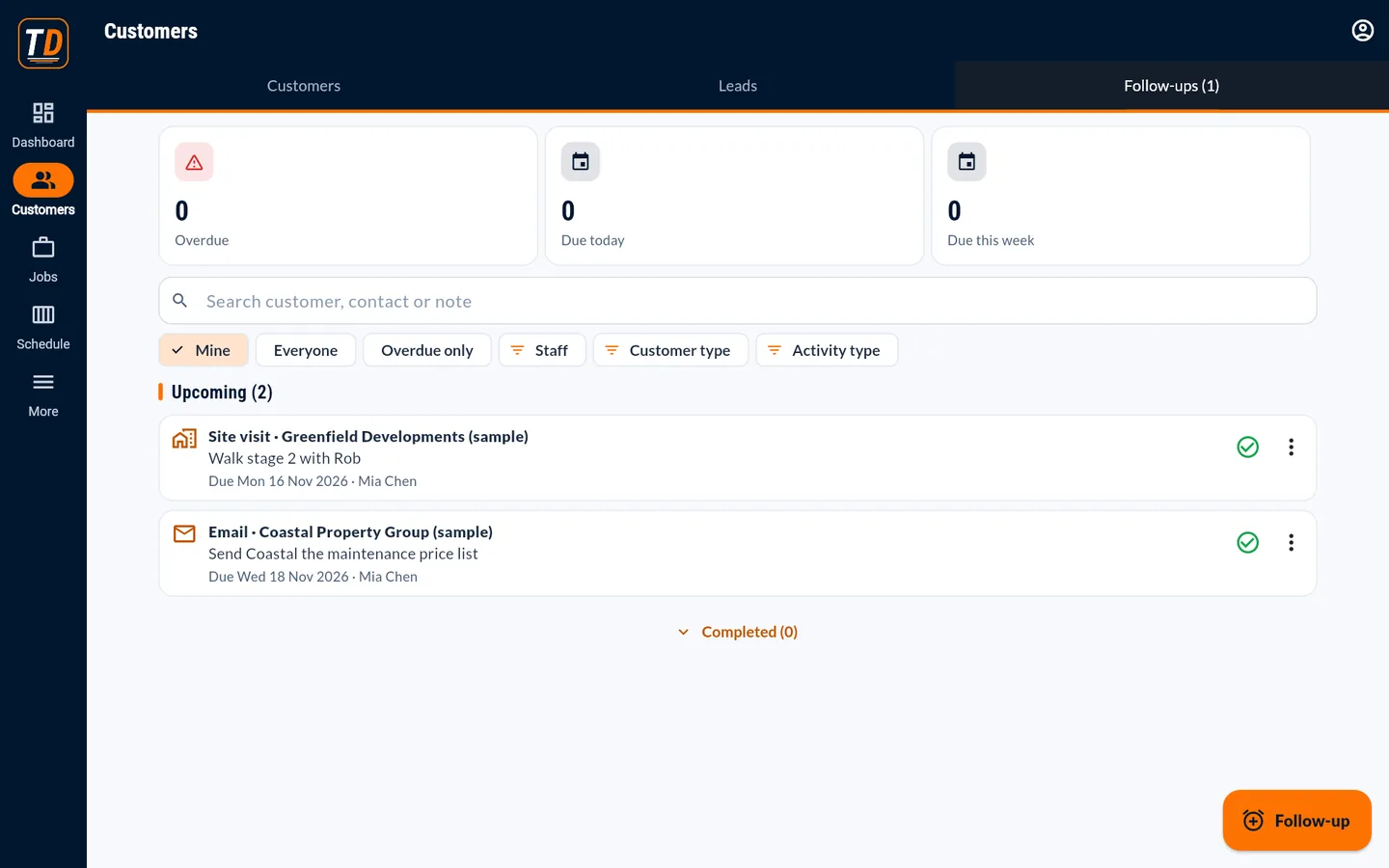
- Customers → Follow-ups → Mine shows what is yours. Press Complete… to record the outcome and book the next step.
Subcontractor collaboration and document requirements
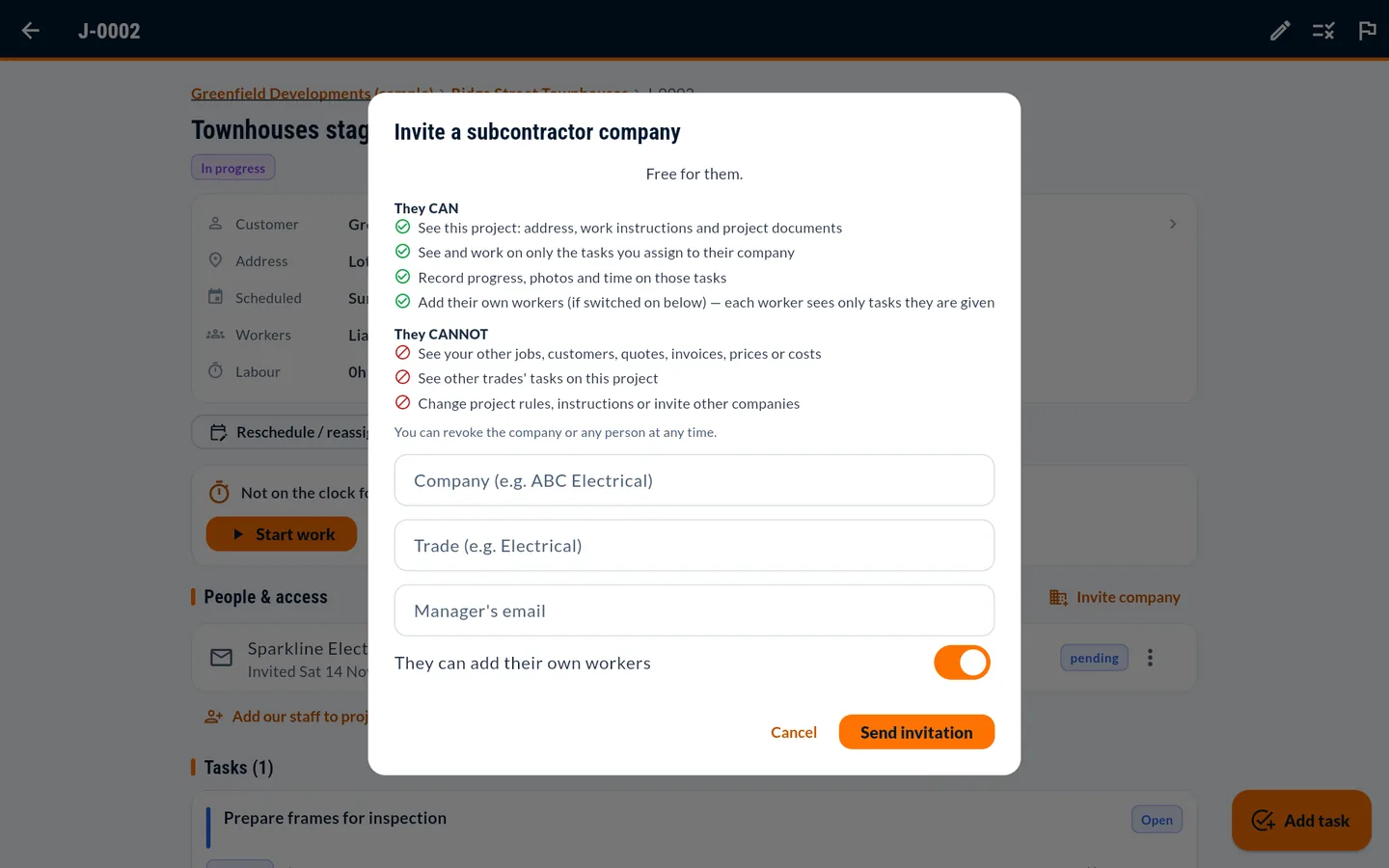
- People & access → Invite company. Enter the company, trade and manager's email, then send.
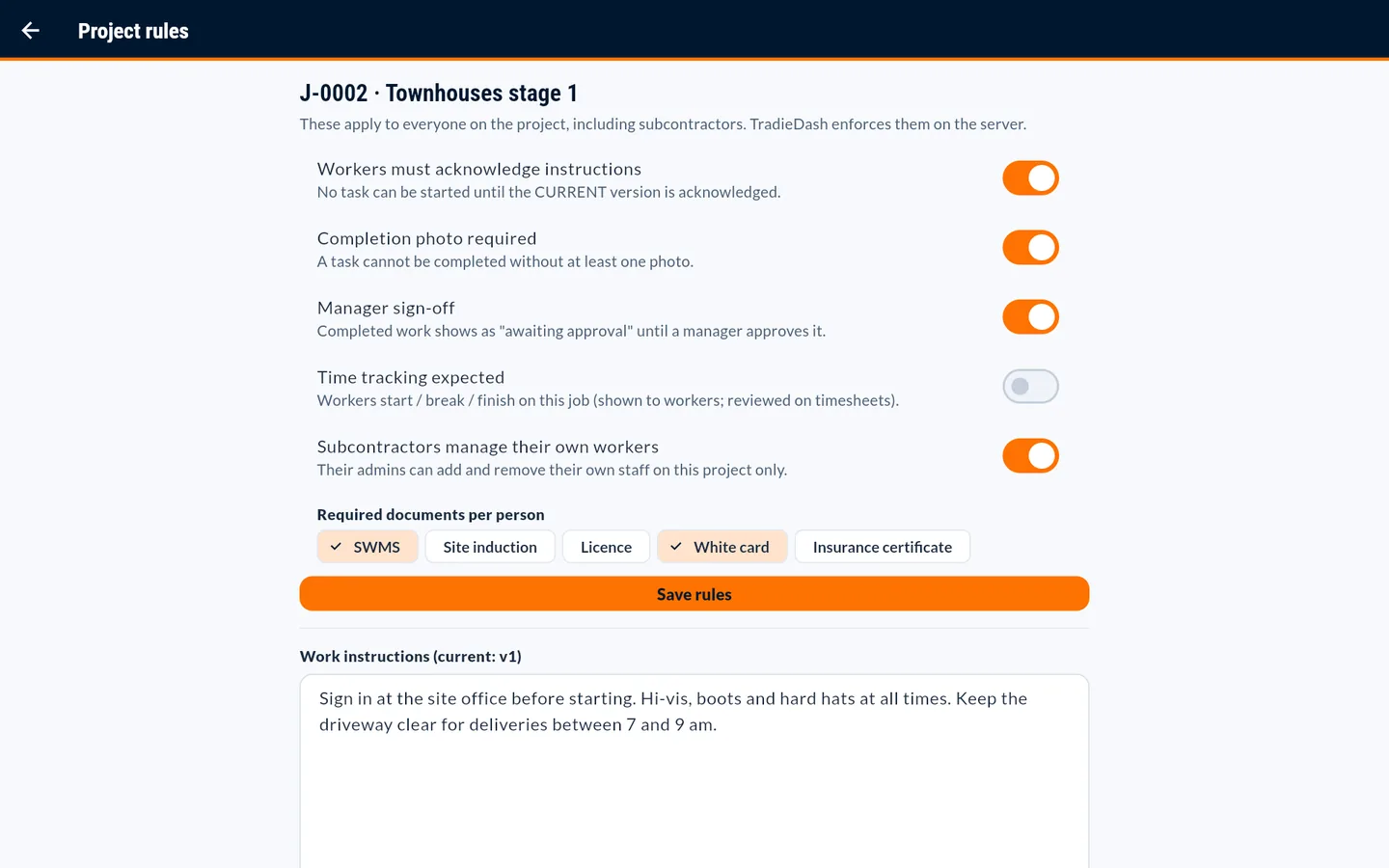
- Set required documents and instructions under Project rules (flag icon).
- People & access shows who has acknowledged the current instructions, and which documents are still missing.
Monitoring job progress
- On each job: task statuses, each worker's progress on shared tasks, time on the job, and documents.
- Dashboard → Work to approve and Timesheets to approve.
What you can't do (permission limits)
Office managers cannot invite or remove team members, change anyone's role, edit business settings, or change the subscription. Ask the owner. Like everyone, you can't see other businesses' data.
Screenshots show a fictional sample business. Your own screens show your data.